First, determine who is contributing, the employee, the employer or both.
Employee Contributes:
Go to COMPANY SETTINGS>PAY RULES
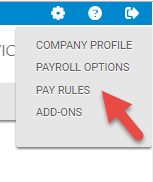
DEDUCTIONS Tab
Add a rule for Employee RRSP
Check the box to Enable and Reduce Taxable Gross-This will reduce the amount of taxable income for the employee which is the whole point of a RRSP.

Click SAVE
The funds will be deducted from your employee’s pay and you will need to send them into your Group Plan Administrator.
**If you do not have a group RRSP but the employee contributes to their own RRSP, you can also check off Non-Cash in the deduction rule. This will simply reduce taxable income but the employee will keep the cash. It is your responsibility to ensure at year end that the amounts that were deducted were in fact submitted by the employee to their RRSP. A statement of their contributions to their plan will satisfy this.
Next:
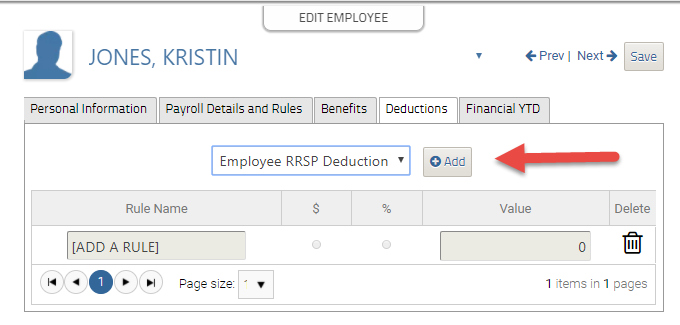
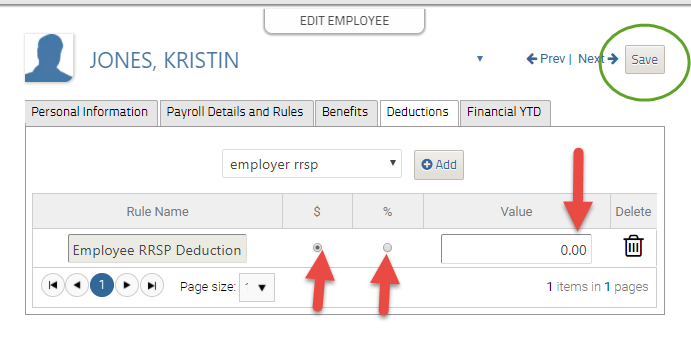
Go to Employees>Edit Profile and under the Deductions Tab add the rule you created. Then add the $ or % amount for the employee’s contribution and click Save. It will now run each payroll.
Employer Contributes:
For this to work you need a Benefit and Deduction rule combination.
Go to COMPANY SETTINGS>PAY RULES
DEDUCTIONS Tab
Add a rule for Employer RRSP Deduction
Check the box to Enable and Reduce Taxable Gross-This will reduce the amount of taxable income for the employee which is the whole point of a RRSP plan.

Click SAVE
Go to BENEFITS tab
Add a rule for Employer RRSP Benefit and Enable it.
In most cases, set it subject to CPP, EI, Federal Tax and Provincial Tax.
Set the T4 box to box 40 and Provincial Box to L if you have employees in QC, it will also show correctly under box 14 and Box A respectively.

Click SAVE
*In some instances the amounts may not be subject to EI, please see here to see if your plan qualifies for this.
Next:
Go to Employees>Edit> Benefits Tab
Add the Employer RRSP Benefit rule and then add the $ or % amount below.
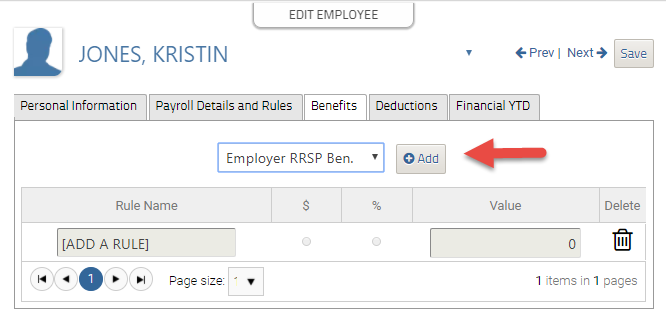
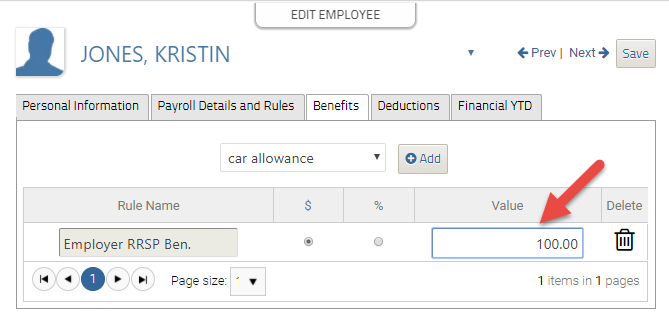
Click Save
Then go to the Deductions Tab
Add the Employer RRSP deduction rule and then add the $ or % amount below.
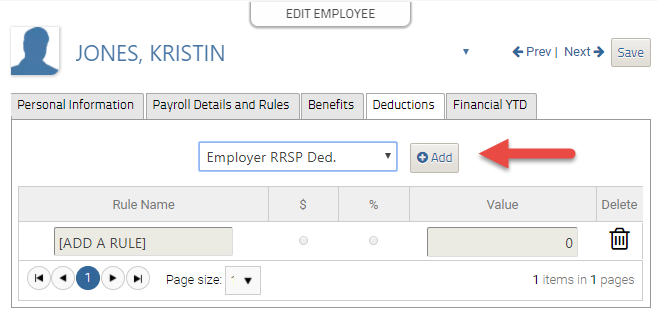
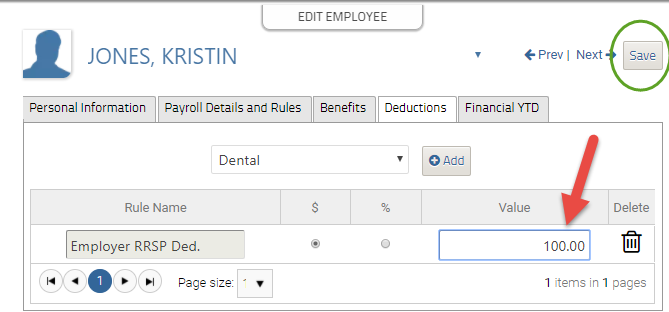
Click Save
Both Employee and Employer Contribute:
Follow the steps for both instances above to create all 3 rules (employee deduction, employer benefit and employer deduction).
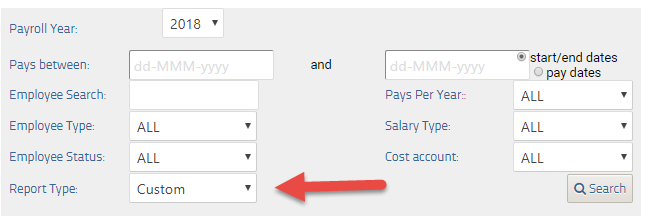
Use the PAY EXPLORER (DYNAMIC) Report with Report Type CUSTOM to select these rules to run a report to see what you need to contribute to your plan.
Comments
0 comments
Please sign in to leave a comment.