User Management
If you have multiple clients and multiple people to manage those clients, the EVOLV Client Management studio provides robust tools to assign responsibilities while maintaining privacy, security and audit capabilities.
User Management
The EVOLV Client Management studio provides robust management tools for setting up shared access to your client roster. You can invite colleagues to manage clients of your firm, assign certain clients to certain colleagues and even stipulate the level of access each team member has to each client account.
A team member is a member of your firm that requires access to the a client's profile. Typical use cases include viewing client pay runs, exporting ledgers to connected accounting systems, and completing year-end tasks like T4/RL-1 creation and submission.
An account is typically a client profile where your firm manages the payroll, business payments and benefits for another organization.
An EVOLV administrator is the EVOLV user with team member and permission assignment capability. Most tasks described in this article must be performed by the EVOLV administrator.
Inviting a Team Member
Use the settings (gear icon) to add team members (users) to your firm's profile. Enter the user's email address and full name.
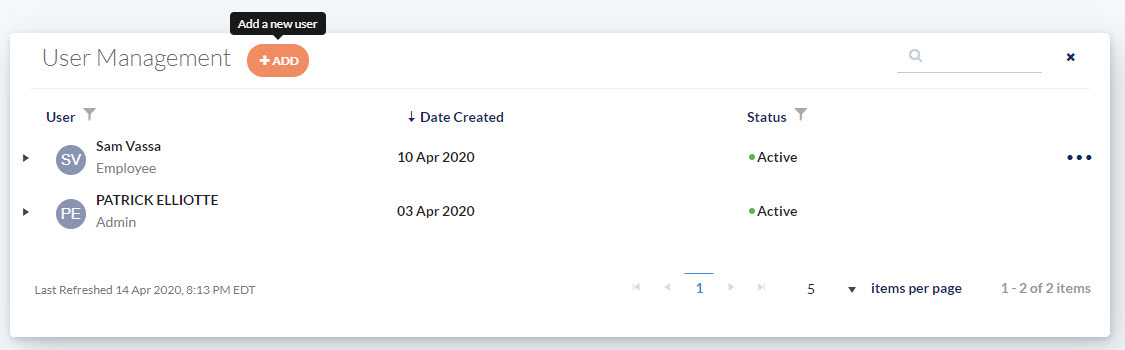
Assign a Role to a Team Member
A team member can be assigned a role within your firm. The role dictates their own capabilities within the EVOLV Client Management studio.
Employee: access to the EVOLV Client Management studio is limited to managing the client accounts assigned to the team member. The team member will only see the client accounts which they have been granted permission and have payroll manager access to clients. This means they can add/edit employees, run payroll and view some reports. They can view support tickets the limited usage log for those permitted accounts.
Manager: Has full master access to each assigned client (select plans). They can view/edit support tickets and view usage logs with dollar values
Admin: The EVOLV administrator can invite team members, assign permissions and accounts, revoke access and view all details within the EVOLV environment.

Assign Client Accounts
Each team member can be assigned their own specific sets of clients. Clients can be managed by an individual team member, or clients can have multiple managers depending on your own firm's needs.
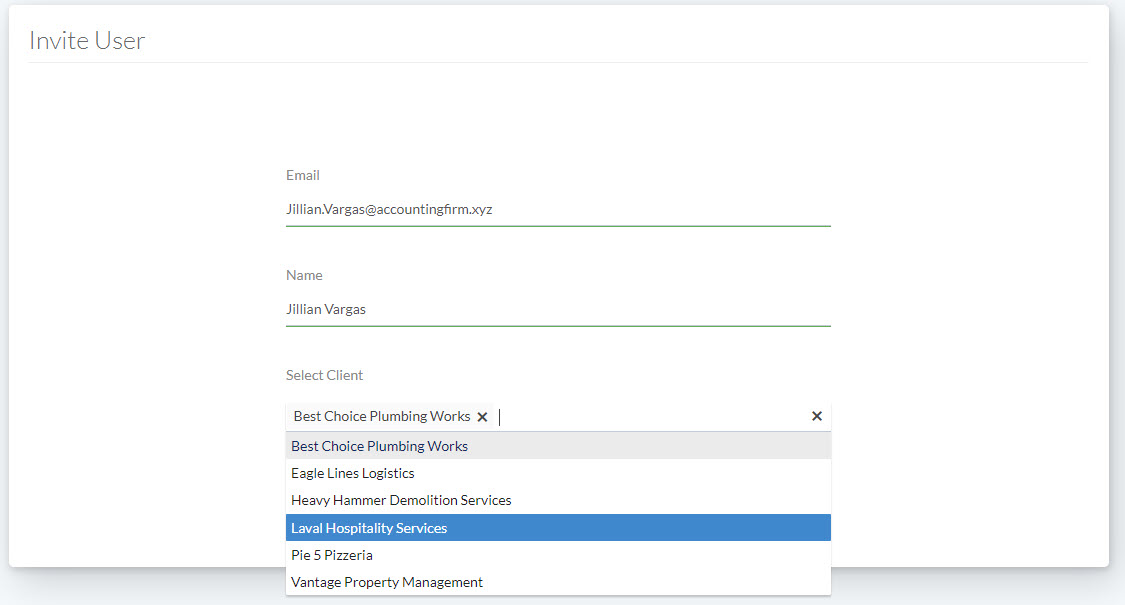
Assign Permissions for each Client Account
Once you have allocated client accounts to a team member, you can stipulate the permission level this user has to access the client's profile.

TimeKeeper: the team member will have the ability to enter time records for employees of the client but not complete pay runs or export data.
TimeAdmin: the team member will be able to enter a pay run on behalf of the client's time-based employees (but not salaried employees)
Manager: the team member will be able to process pay runs for time-based and salaried employees. The team member will also be able to view reports but will not be able to change company details.
Master: the team member will have full privileges and access to the client profile. This includes modifying company details, bank accounts, connecting third party systems etc.
Read Only: the team member can view any existing reports or other data within a client account but cannot perform any actions or make any changes.
Revoking access and removing a user
If you need to revoke access for a specific team member's access to a client account, go to user details.
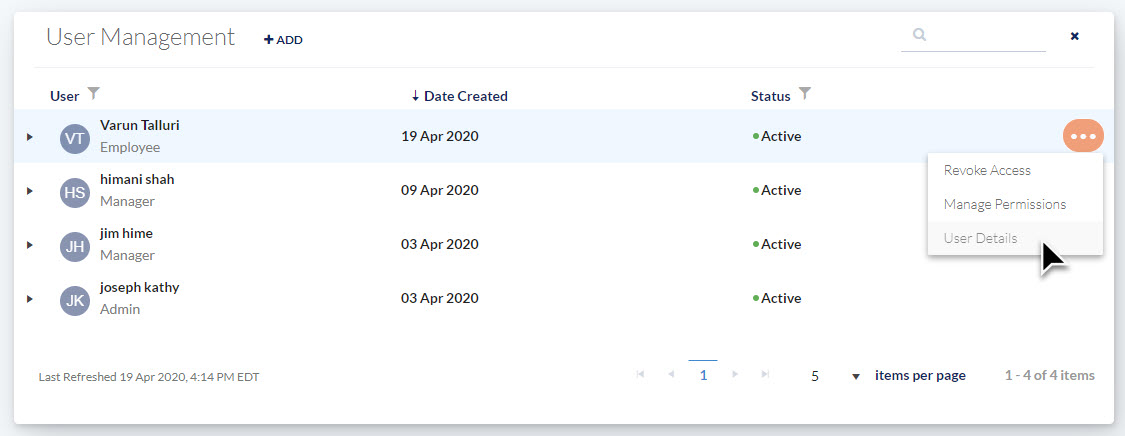
Select the client account and select revoke access.
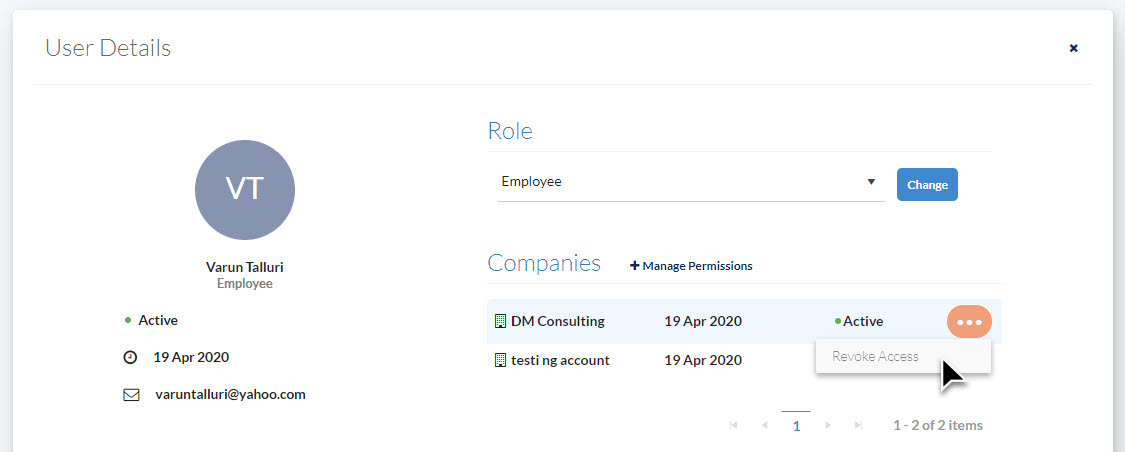
If you wish to remove the team member completely from the EVOLV Client Management studio, go to user management, select the team member and revoke access.
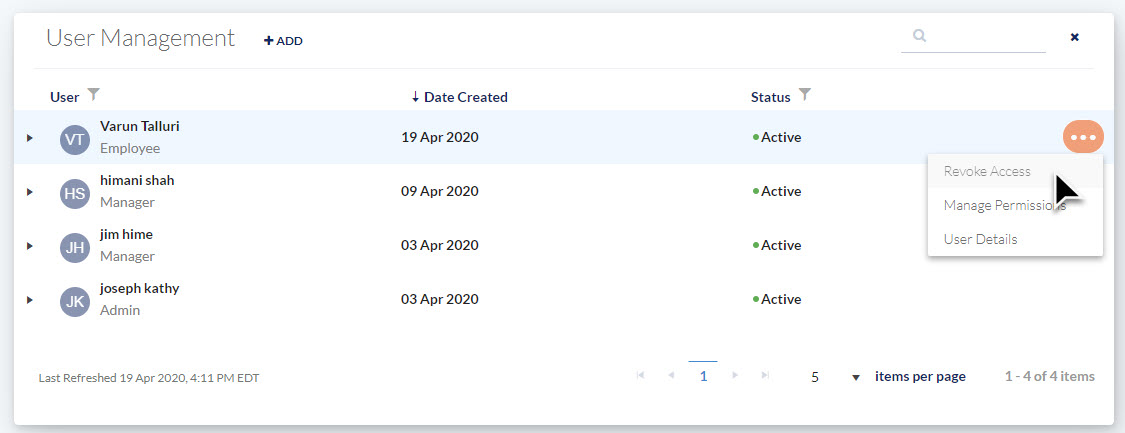
Any client accounts will be unassigned and access permissions will be removed immediately.
Plan Features
Certain capabilities - like client and permission assignment - are available on select plans.
The EVOLV Client Management studio has different plan levels. Features will vary by plan type. Refer to the chart below for details.
| E1 | E3 | E5 | |
| Invite team member | Yes | Yes | Yes |
| Select client account | No | Yes | Yes |
| Manage permissions | No | No | Yes |
| EVOLV Role | No | Yes | Yes |
| EVOLV Role change | No | Yes | Yes |
| EVOLV default role | Manager | User selects from Manager, Employee | User selects from Manager, Employee and Admin |
| Revoke access | Yes | Yes | Yes |
To further manage the security settings of your users please refer the guide here
Comments
0 comments
Article is closed for comments.