How do I pay vendors and subcontractors?

Can I use the payrun process to also pay my subcontractors and vendors? Can you issue a T4A year-end tax form?
-
Official comment

Subcontractors and vendors
You can use the payrun process to pay your subcontractors and vendors - it's simple to setup and convenient.
Here's how to enroll your subcontractor and perform a payrun for them.
Subcontactor and third party vendor setup
To pay your subcontractors and outside vendors you'll first set them up in your payroll profile.
- Login to your account and go to the EMPLOYEES area. You'll be adding a new entry so select the 'Add Employee' button
-
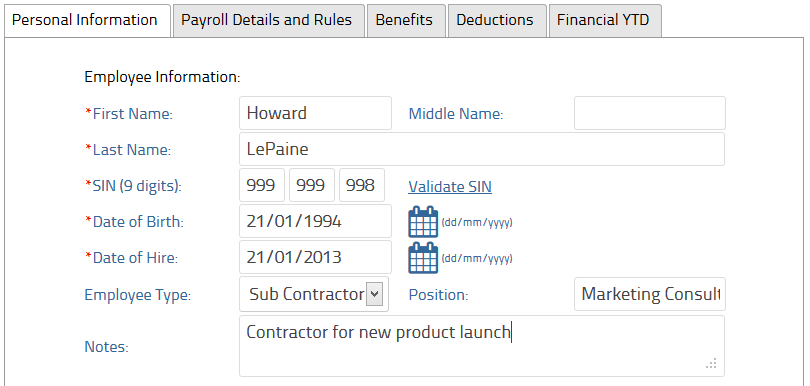
Enter the pertinent details for this subcontractor - name, SIN and other contact details.
SIN: If you are not required to gather the Social Insurance Number of your vendor or subcontractor, enter 999 999 998.
DOB: Typically, date of birth is not required - enter a date and ensure the new contractor is at least 18y
DOH: Date of hire - enter the date the contractor or vendor started working for you -
To ensure that CPP, EI and other deductions are not taken for this new profile, set the employee type to 'contractor'
-
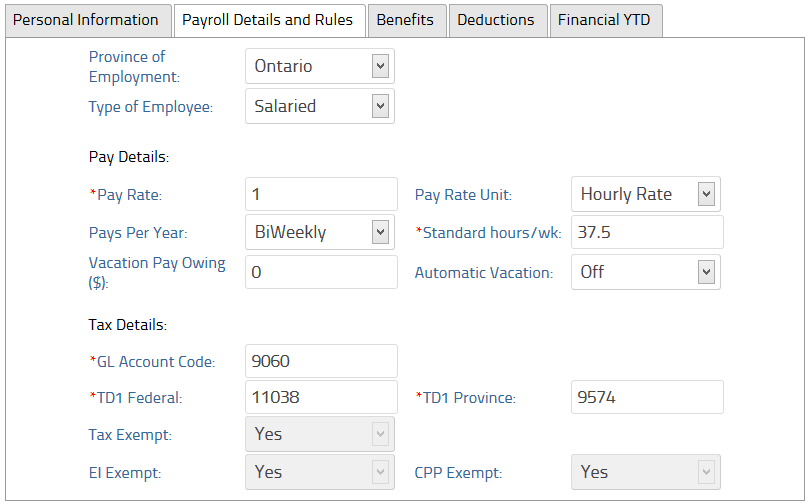
Under 'Payroll Details and Rules' tab, set the appropriate renumeration. You'll also want to set the pay frequency to match the pay cycle you have for your other staff. While you may not pay your subcontractor every pay period, by setting the same cycle, you'll ensure they are listed as eligible to be paid during your regular payruns.
-
Save the profile - you are now ready to perform a payrun
Paying a subcontractor or vendor during a payrun
- Start your payrun and select the appropriate start, end and cycle dates
- If you set the subcontractor as 'salaried' they will be visible on the 'Salaries' stage of the payrun. If you've set them as 'hourly' they will be visible on the 'Timesheets' stage
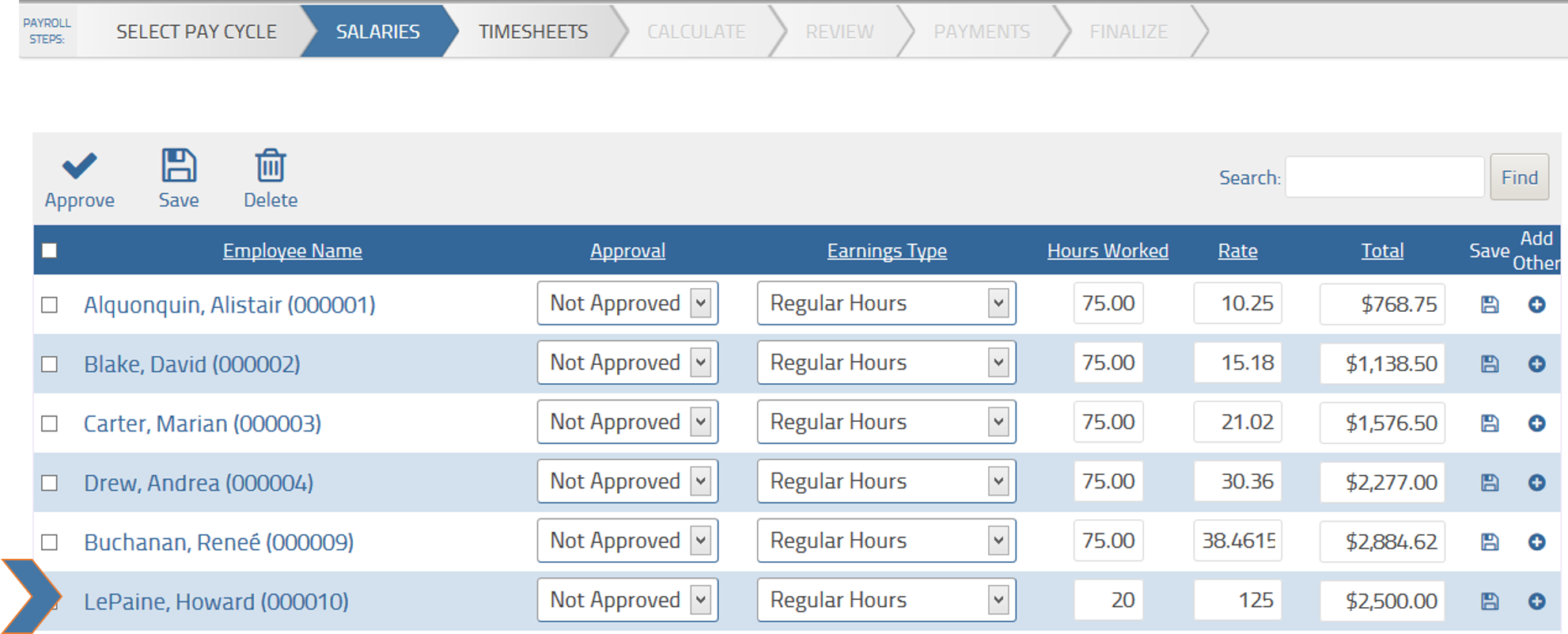
- Modify the amount as necessary, approve and finalize your payrun. The subcontractor's payment will be included as part of the payrun.
Notes:
- Adding PST / HST and sales taxes: use the custom pay rules feature to create a custom 'benefit' called 'sales tax' and apply it to the subcontractor's profile as a percentage of the gross
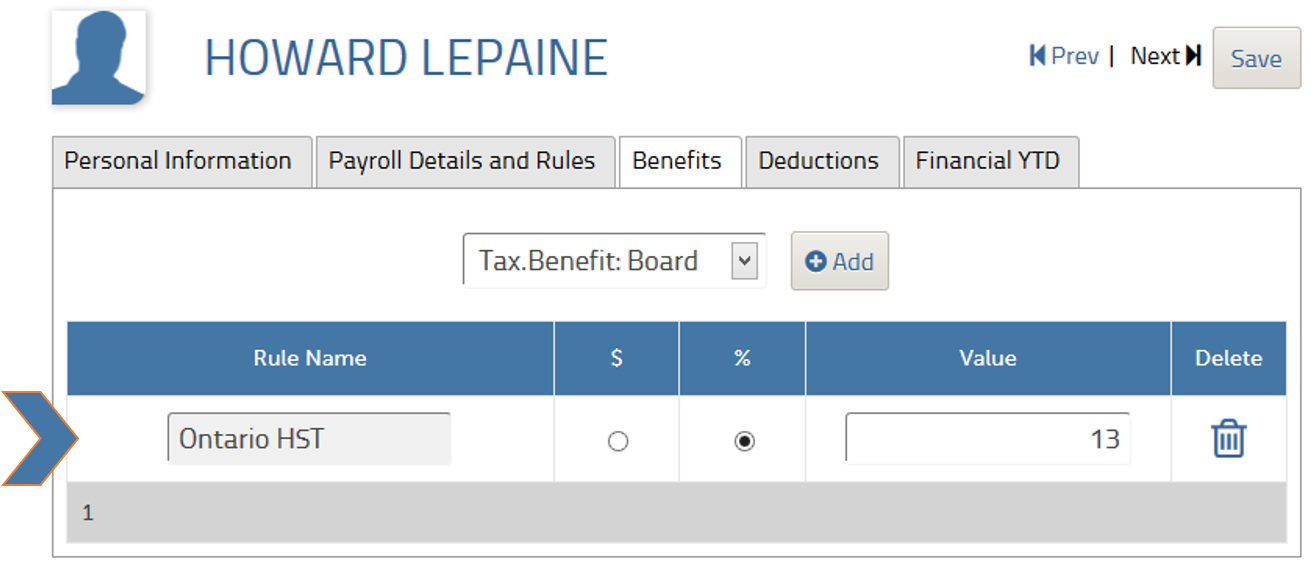
- By setting the profile to 'contractor' you'll be marking any regular earnings as tax-exempt, EI, CPP and QPIP-exempt. You'll also be telling the system to generate a T4A slip at year end for this profile.
Business Payments vs Contractor setup in payroll
By setting up a contractor in payroll you will be able to track payments and issue T4A slips at year end. If you do not need T4A slips (typically when another business invoices you for services or goods) then you can use Business Payments to electronically pay the recipient. Business Payments will not issue T4A slips at year-end.
Comment actions
Post is closed for comments.
Comments
1 comment