Expense reimbursements

UPDATED to reflect new pay rules
Expense reimbursements
Did you know that you could reimburse employee expenses as part of the payroll process? Employees will get their funds sooner and more securely - and you'll be able to ensure payments have been made.
To get started, you should know how to create custom rules for your payroll.
- Login to your account and navigate to
 -> PAY RULES -> EARNINGS

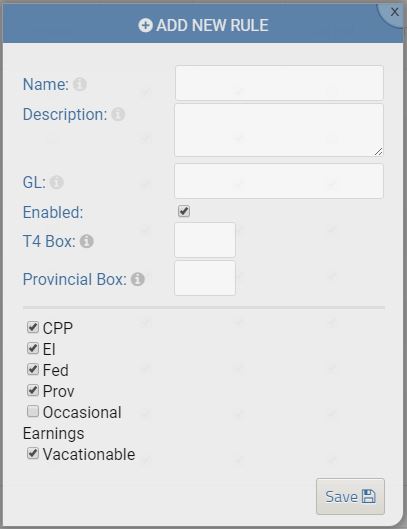
- Modify an unused rule or click "add new rule". Give it a memorable name like "Expense Reimbursements" - this will show on your employee pay slips. Uncheck the boxes for CPP, EI, Fed and Prov Tax as well as 'vactionable' and 'occasional earnings' - we're essentially creating a custom earning that is not taxable and not subject to automatic vacation calculations. Remember to click the SAVE icon.
- Now when you perform a pay run you'll be able to use the "ADD OTHER" button on the salaries or timesheets page to enter this custom earning for each employee.

NOTE: If you've previously used this rule, you should go back and edit it to remove 'vacationable'. This will allow you to use the rule if you turn on automatic vacation tracking for your employees.
-

Thanks Sam.
This workaround could solve the vacation accrual issue, but might cause some issues if users aren't particularly diligent at the end of the process.
- Create a custom, non-taxable, non-EI, non-CPP benefit (current system options are 'reduce tax' and 'non-cash', so leave these unchecked)
- Add that benefit to the employee setup
- Update the amount of the reimbursement in that benefit field of the employee setup before calculating a pay run
- During the pay run, use custom calculations and enable that newly created benefit
- Revert the benefit figure back to zero in the employee setup options once the pay run is complete
Although this may only be a temporary fix, I just wanted to thank you for all the good work you're doing to enhance the application on an on-going basis.
Chad
- Create a custom, non-taxable, non-EI, non-CPP benefit (current system options are 'reduce tax' and 'non-cash', so leave these unchecked)
-
@Andrew Epp
You can still specify the GL code by clicking / tapping "ADD NEW RULE" and using the popup box to enter the custom GL code. We're looking at enhancing the table grid to show that as well.
Please note: this feature is available only with the project costing option (without costing, amounts will allocate to the default earnings GL code)

Please sign in to leave a comment.
Comments
4 comments