Employee Import via CSV
This feature is available on our business plus plan, advanced accountant plan and EVOLV.
To import employees using CSV, download the template from the bottom of this article and fill it in using the file specifications below.
*It is critical that you follow the specification for the file. Failure to do so will result in a failed import. If you would like one of our specialists to review your file for potential errors we offer this as an add-on service. Let us if you would like to know more.
Ready To Import
If you have not already done so, please Contact Us and ask us to activate this feature on your account. You will receive confirmation once it's live.
Login to your account and go to Employees

Click Import
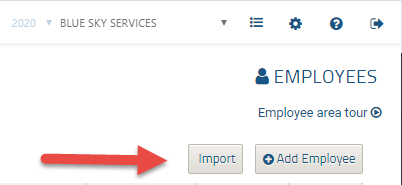
You will receive confirmation of the upload or any issues encountered on screen.
Specifications
|
Name |
Field size |
Description |
Mandatory? |
|
|
1 |
EmployeeNumber |
15 |
Custom employee number (optional). System generated if left blank. |
N |
|
2 |
FirstName |
30 |
Employee first name |
Y |
|
3 |
LastName |
30 |
Employee last name |
Y |
|
4 |
MiddleName |
30 |
Employee middle name |
N |
|
5 |
SIN |
9 |
Validated SIN number - Numeric type |
Y |
|
6 |
DOB |
Date of Birth, format dd/mm/yyyy (must include "/") |
Y |
|
|
7 |
DOH |
Date of Hire, format dd/mm/yyyy (must include "/") |
Y |
|
|
8 |
PayRate |
Amount based on PayRateUnit, numeric only |
Y |
|
|
9 |
PayRateUnit |
1 |
Y = Yearly H = Hourly M = Monthly W = Weekly |
Y |
|
10 |
PaysPerYear |
2 |
52 - Weekly 26 – Bi-Weekly 12 – Monthly 04 – Quarterly 01 – Yearly 24 - Semi-monthly 22 - 22 Pays a year 13 - 13 Pays a year 10 - 10 Pays a year Defaults to company default PaysPerYear |
N |
|
11 |
TD1 |
Personal exemption amount, Federal (defaults to base exemption), numeric |
N |
|
|
12 |
TDP |
Personal exemption amount, Provincial (defaults to base exemption), numeric |
N |
|
|
13 |
Add1 |
25 |
Address line 1 |
Y |
|
14 |
Add2 |
25 |
Address line 2 |
N |
|
15 |
City |
25 |
City |
Y |
|
16 |
Province |
2 |
AB = Alberta BC = British Columbia MB = Manitoba NB = New Brunswick NL = Newfoundland and Labrador NS = Nova Scotia NT = Northwest Territories NU = Nunavut ON = Ontario PE = Prince Edward Island QC = Quebec SK = Saskatchewan YT = Yukon |
Y |
|
17 |
Postal |
6 |
Postal code (A1A1A1 format, no space) |
N |
|
18 |
GLAccount |
8 |
Cost account for employee earnings, Numeric |
N |
|
19 |
Phone |
10 |
Contact number, Numeric |
N |
|
20 |
Title |
30 |
Job title within company |
N |
|
21 |
|
60 |
Email address |
N |
|
22 |
EmployeeType |
1 |
P = Permanent (default) S = Subcontractor T = Temporary |
N |
|
23 |
SalaryType |
1 |
S = Salaried employee L = Timesheet employee |
Y |
|
24 |
Password |
6 |
Employee password for PayChequer.com access |
N |
|
25 |
Institution |
3 |
For direct deposit - institution number |
N |
|
26 |
Branch |
5 |
for direct deposit - branch. Must be 5 digits |
N |
|
27 |
AccountNumber |
12 |
For direct deposit. Max 12 digits. Canadian banks supported only. |
N |
|
28 |
YTD:RegularEarnings |
Year to date earnings (numeric) |
N |
|
|
29 |
YTD:FederalTax |
Year to date federal tax (numeric) |
N |
|
|
30 |
YTD:ProvincialTax |
Year to date provincial tax (numeric). Use for Quebec only - other taxes should go into Federal Tax (column 29 YTD:FederalTax) |
N |
|
|
31 |
YTD:EI |
Year to date employment insurance (employee portion) - numeric |
N |
|
|
32 |
YTD:CPP |
Year to date Canada Pension Plan contributions (employee portion) - numeric |
N |
|
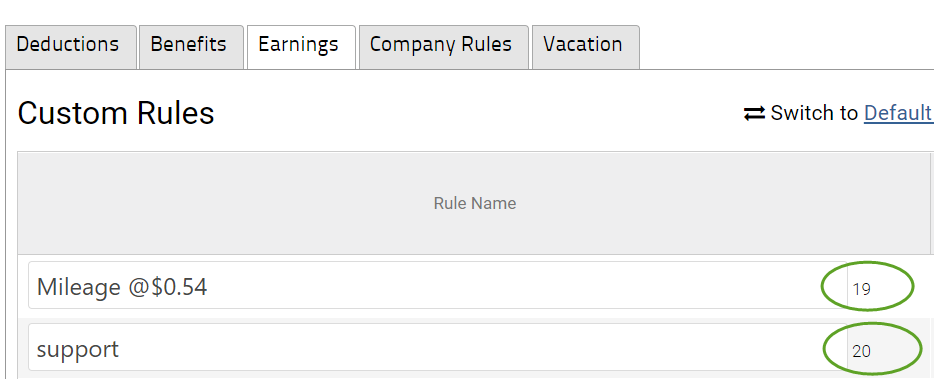
*** If you have custom earnings codes that you need to add the YTD for- go to COMPANY SETTINGS>PAY RULES>EARNINGS. There is a 2-digit number next to your earnings name, this is the YTD:DIGITCODE you would use on the CSV in a new column.
For Example YTD for Support from the picture below you would create a column with the header YTD:20
Notes
Please, note, while Microsoft Excel does work with CSVs, we suggest using a true CSV editor to edit/create your CSV files. Excel has a tendency to change the format on the user, which will result in a failed import. There are many free CSV editors available online.
After Importing
Edit any other employee details as needed You may need to edit fields under Payroll Details and Rules, Benefits and Deductions.
You can download a sample CSV file below
Comments
0 comments
Article is closed for comments.